Nestra

Keep your work within reach.

A laptop showing Nestra's shelf at the edge of the screen
Get it from MicrosoftFree for 15 days. Then $39.99, once.
Shelf

Drop it. Keep it.
Drag it out.

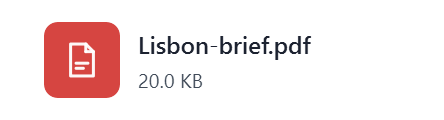
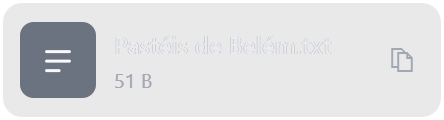
Drag anything onto the shelf at the edge of your screen. Nestra keeps its own copy, so it is still there after a restart, even if the original was a temporary file or a picture from the web.

Stacks name themselves.

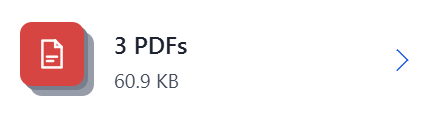
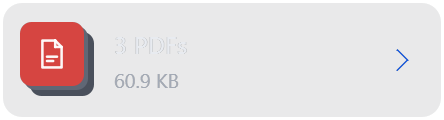
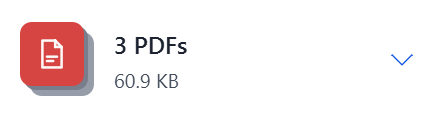
Files dropped together become one stack, like "3 PDFs". Click to open it, take one out, or drag the whole set.

Drag a real copy anywhere.

Explorer, email, chat and web apps take it like a normal file, and the shelf keeps its own.

Your clipboard, right there.

What you copy waits on the shelf too. Click to copy it again, or drag it straight into any app.

Clipboard and Recall

Copy now.
Find it later.

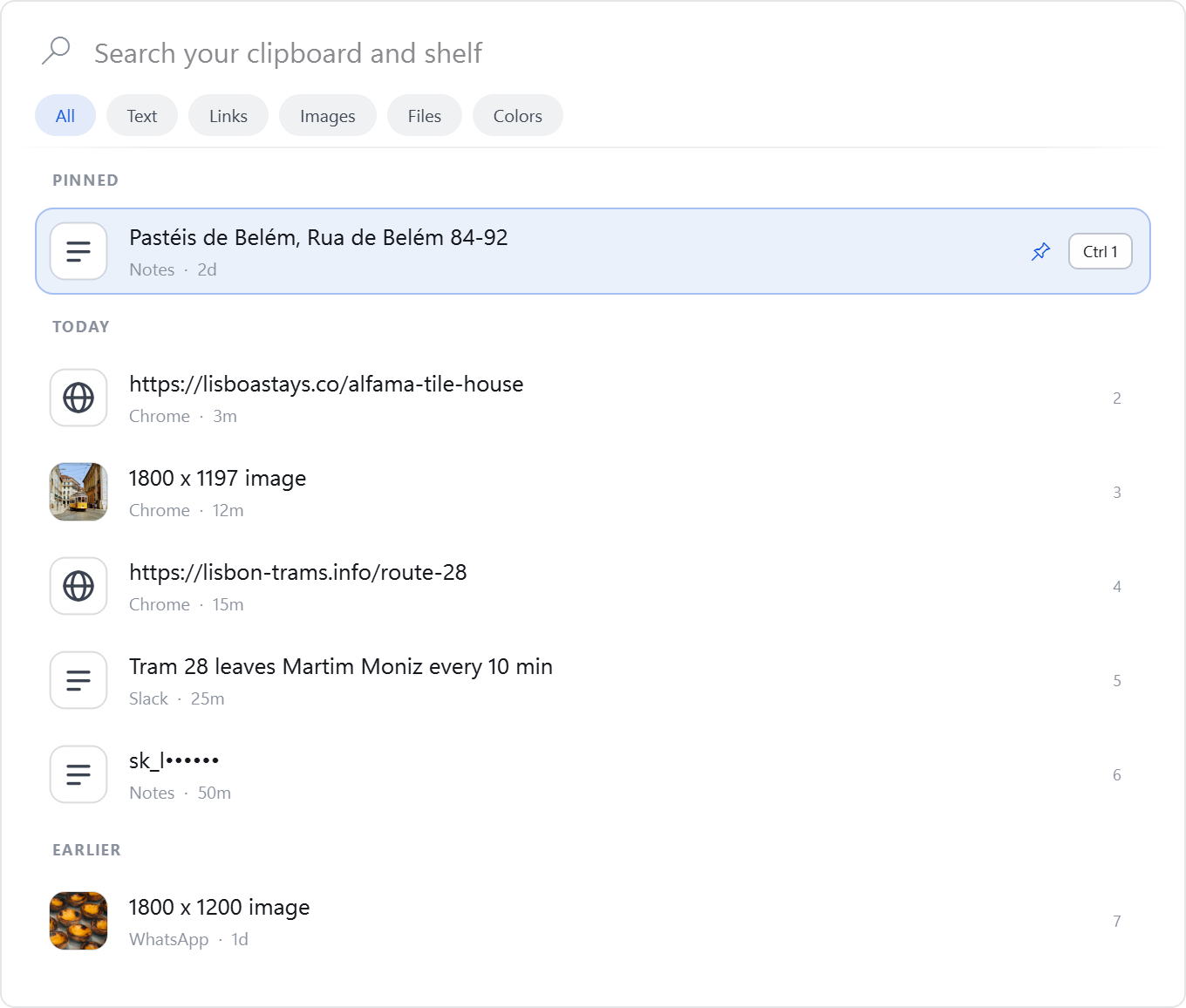
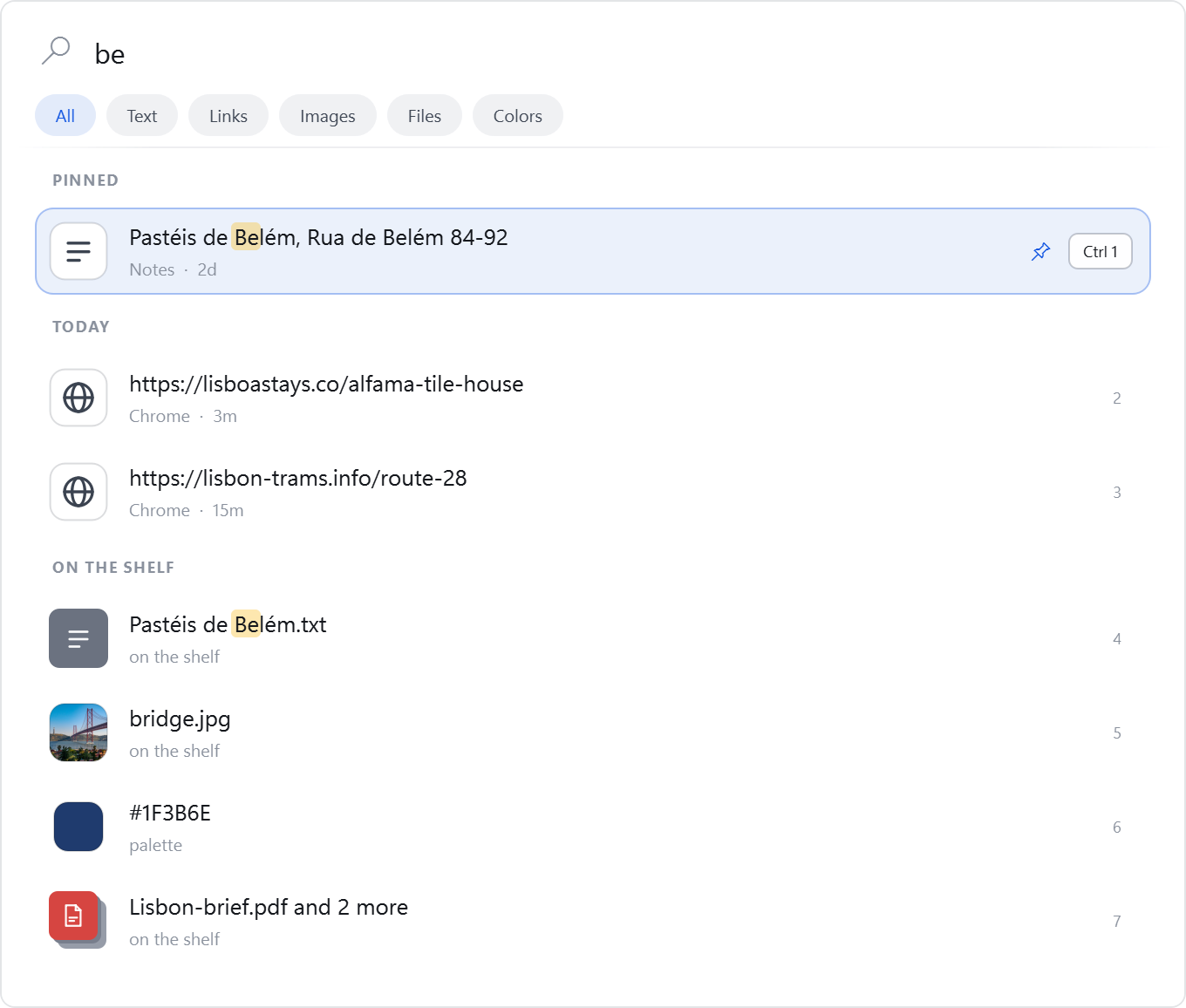
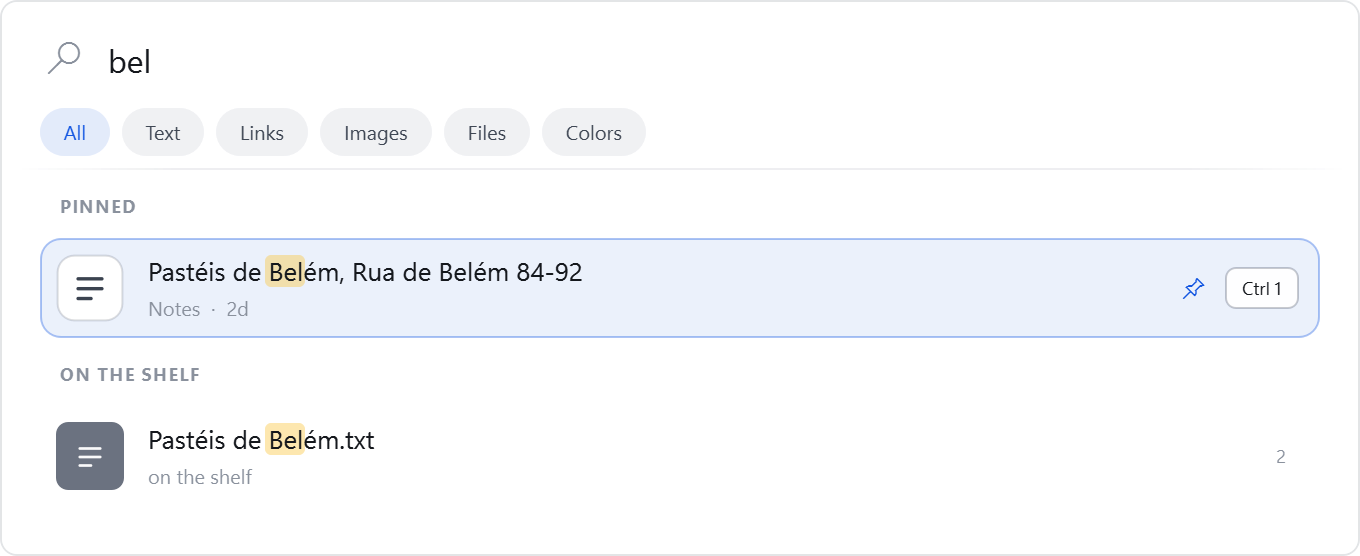
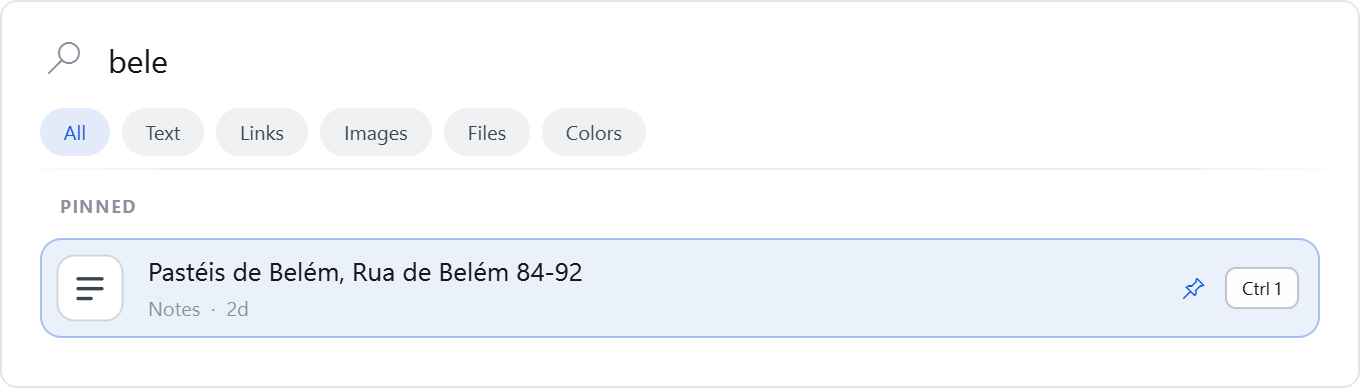
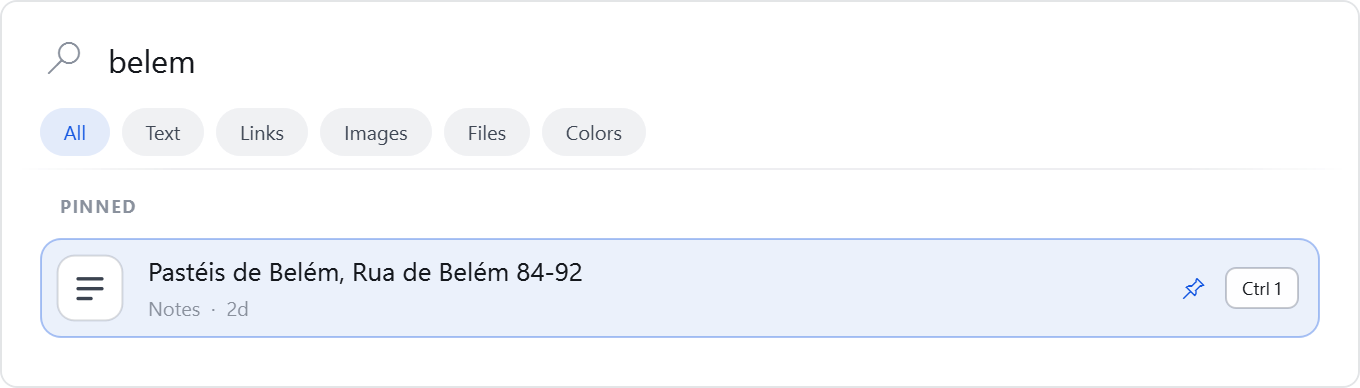
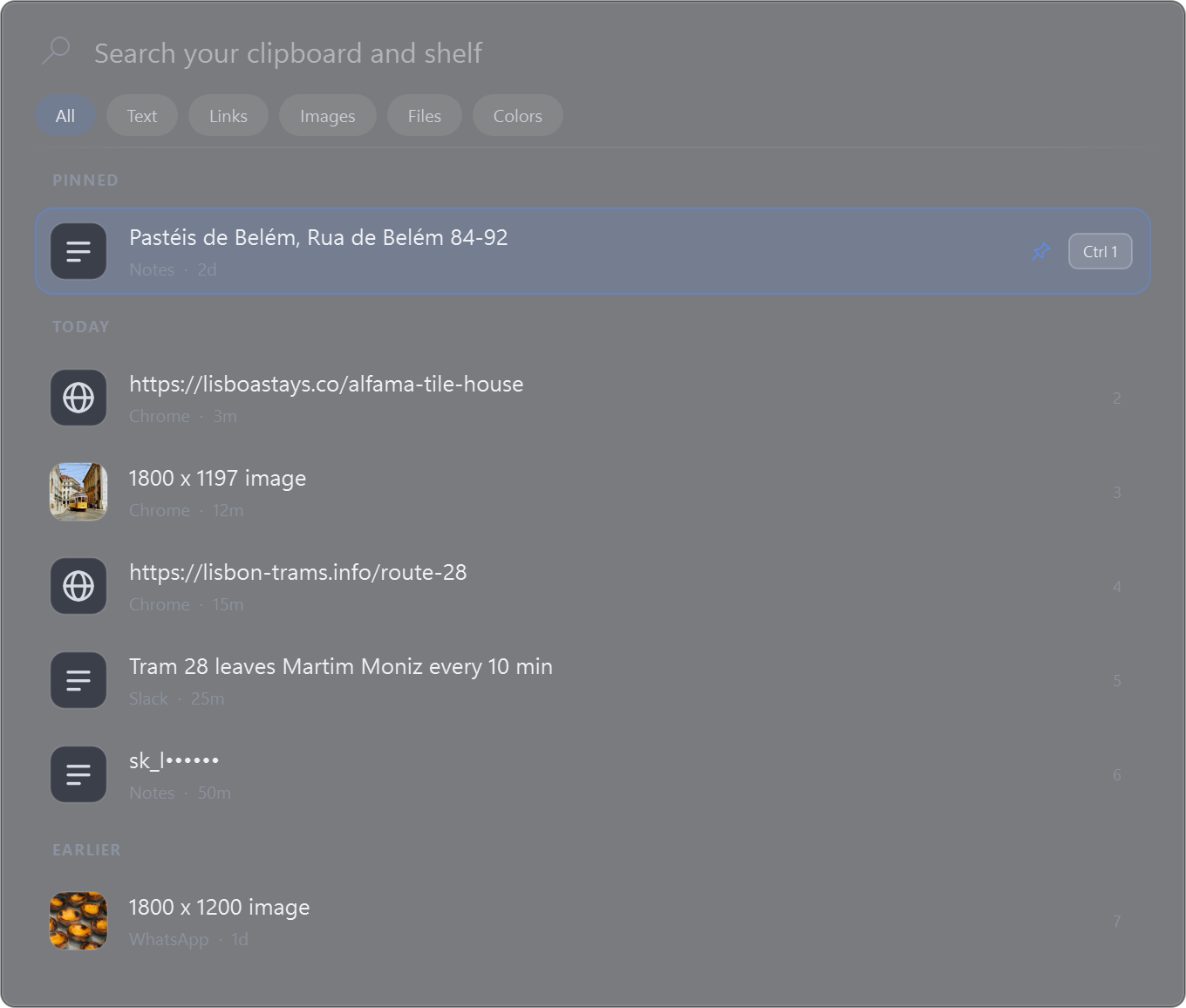
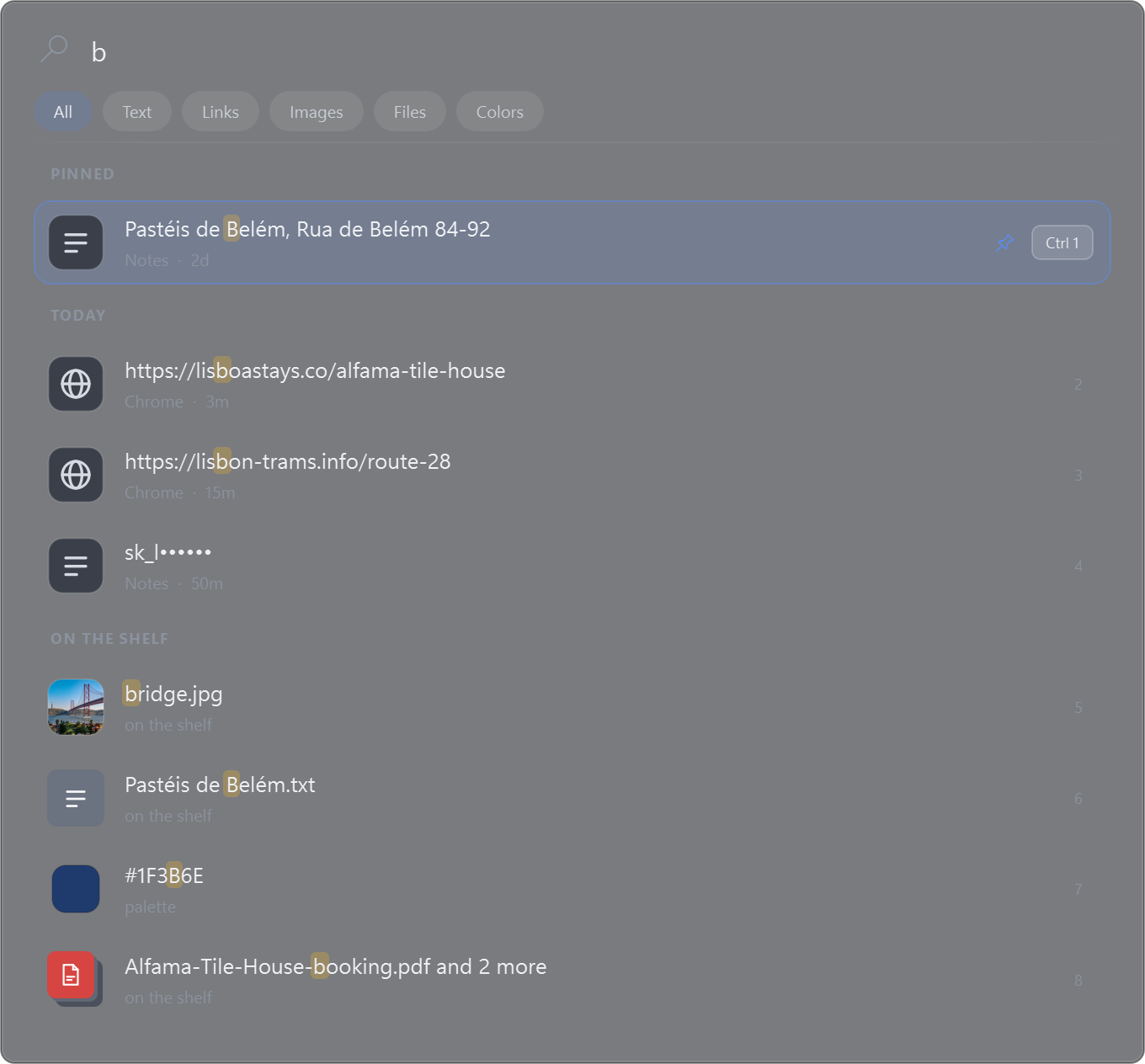
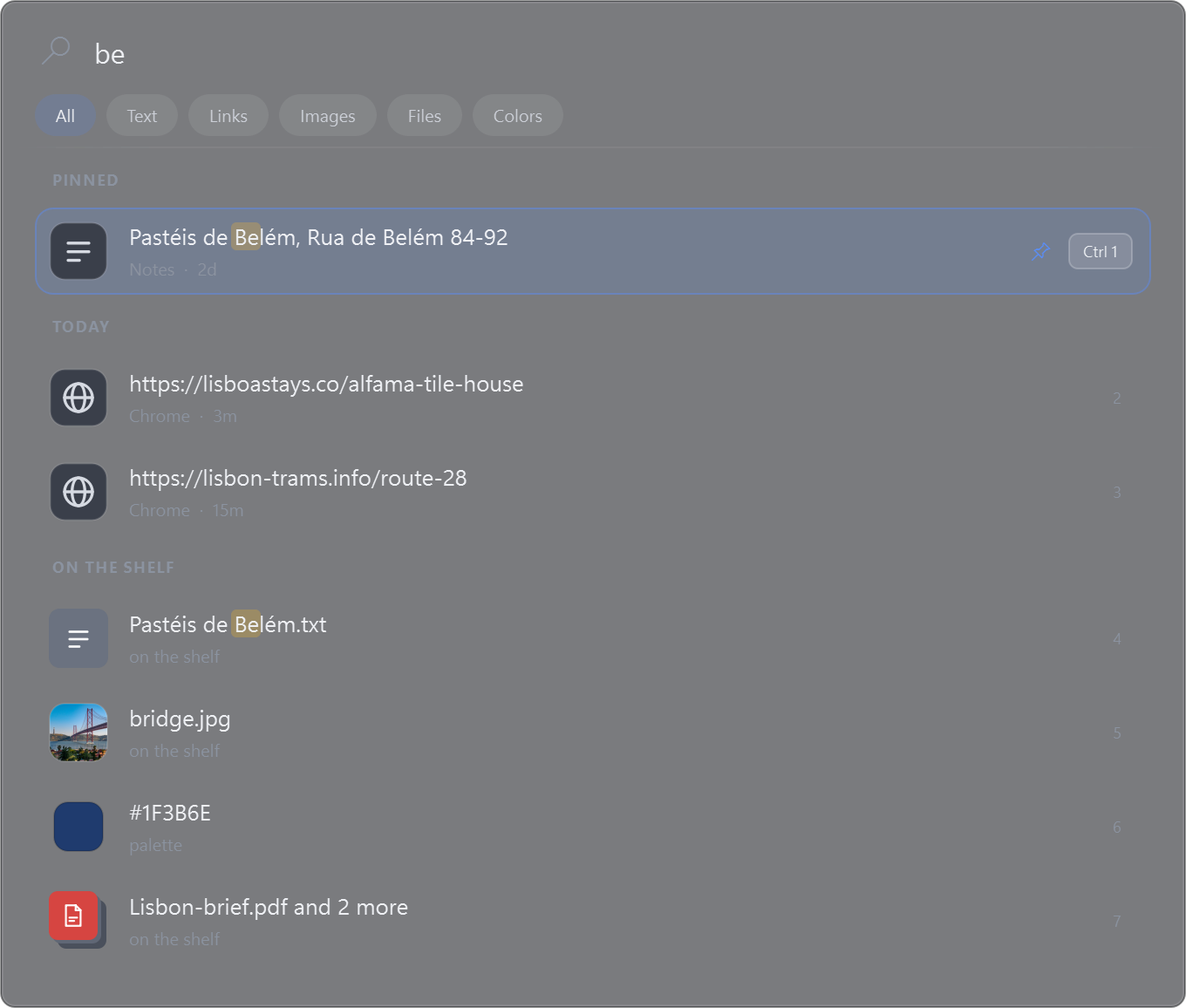
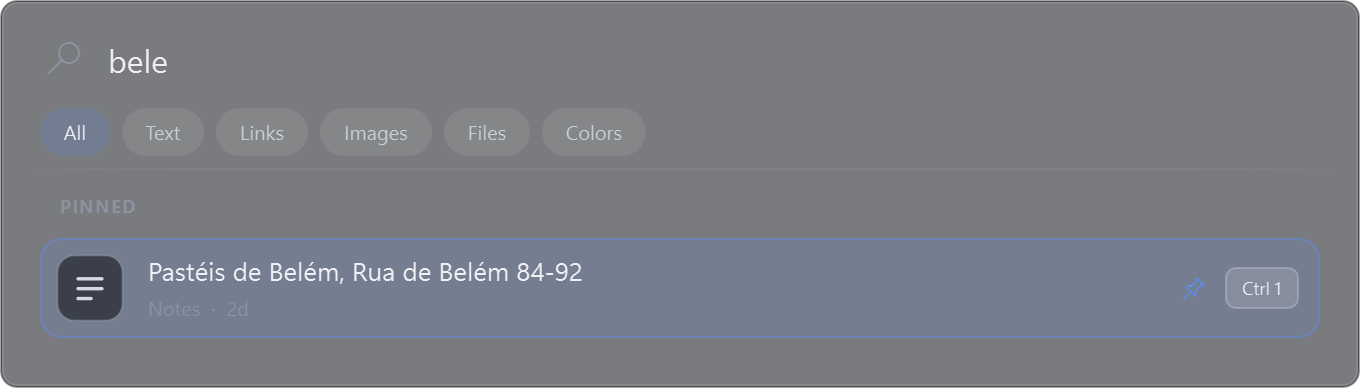
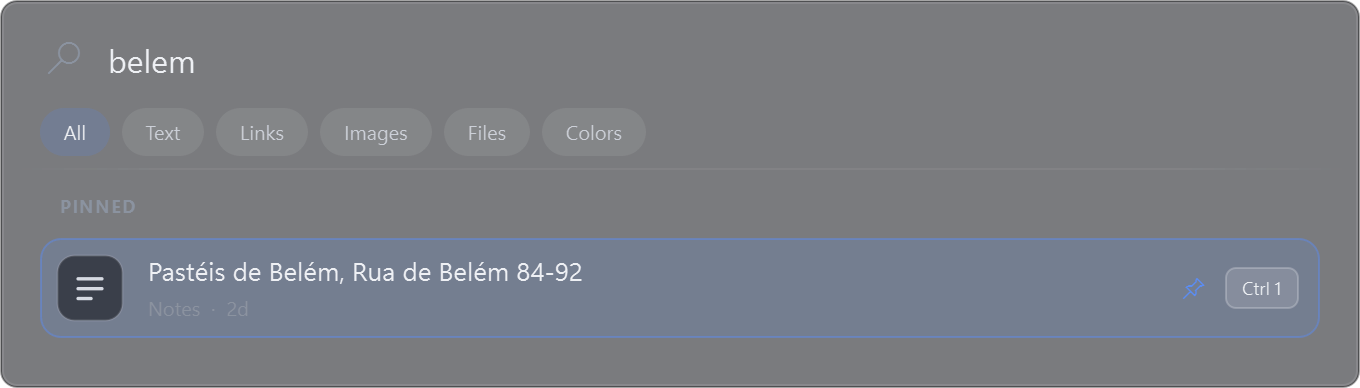
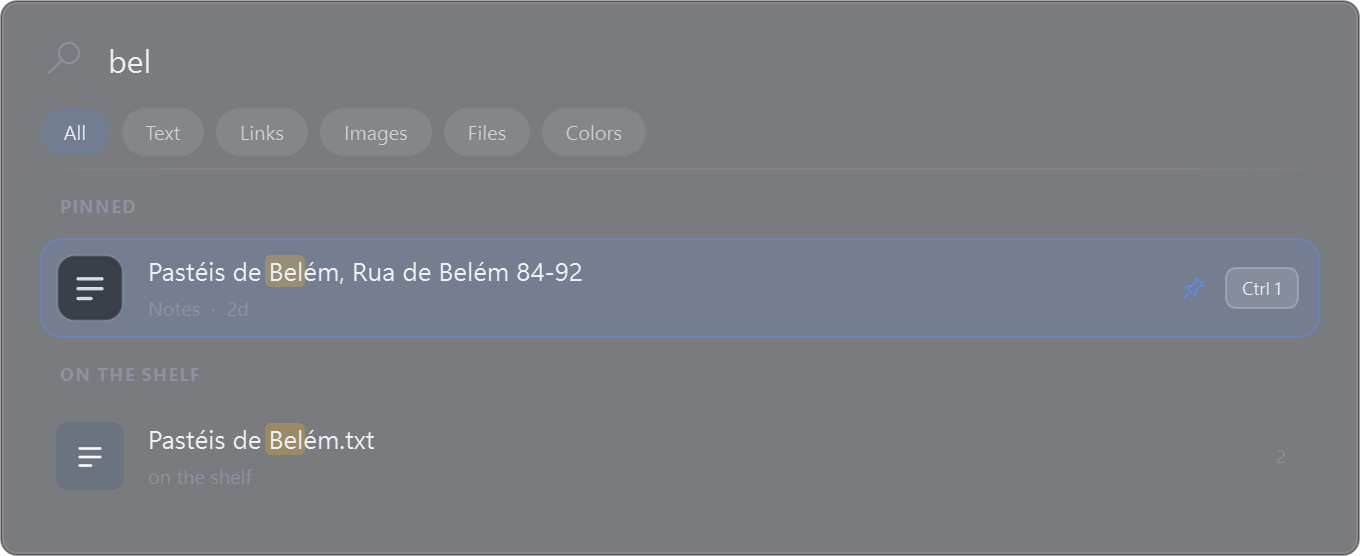
Nestra keeps a private history of what you copy. Press Ctrl+Shift+Space, type a few letters, and press Enter to paste straight into the app you were in.

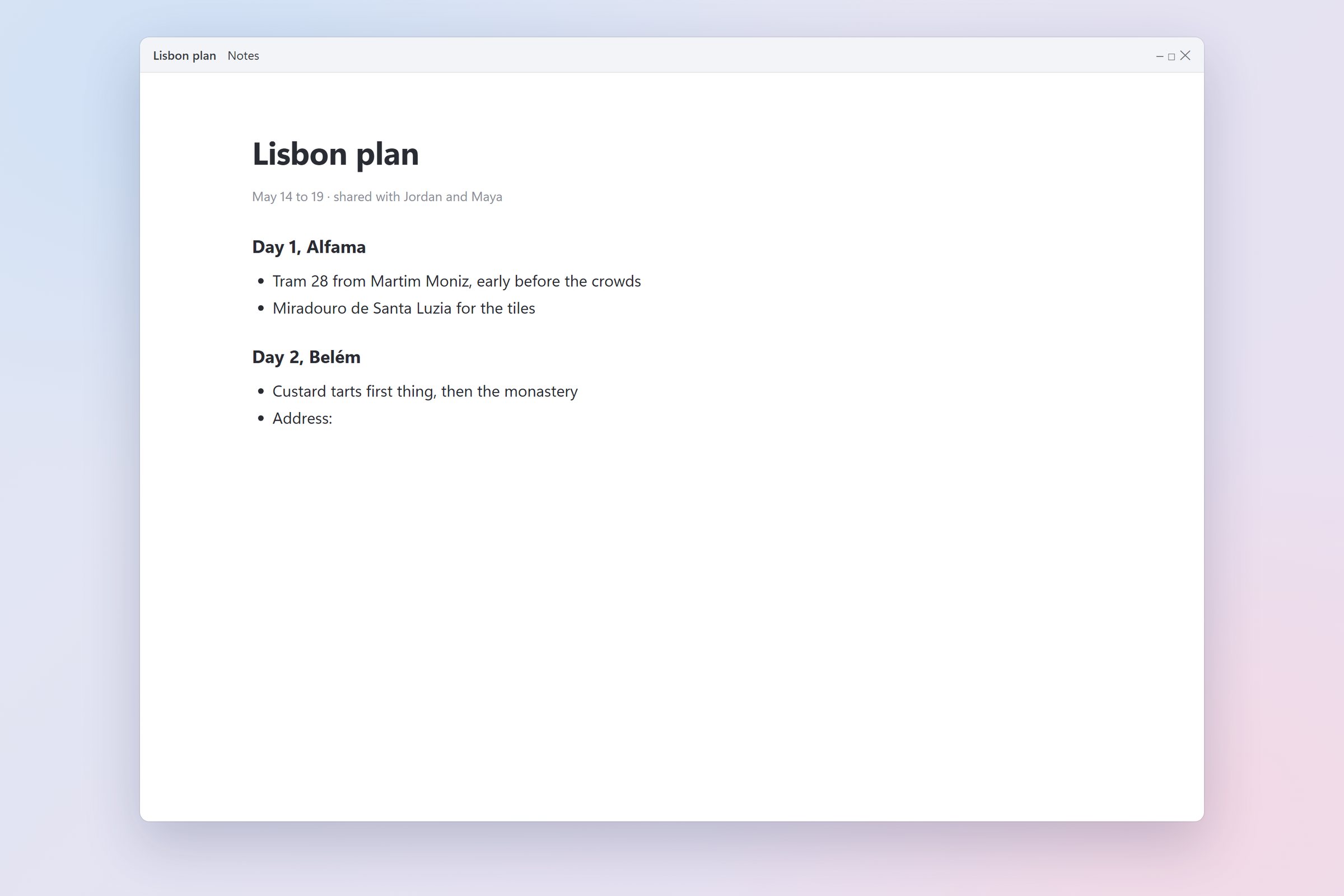
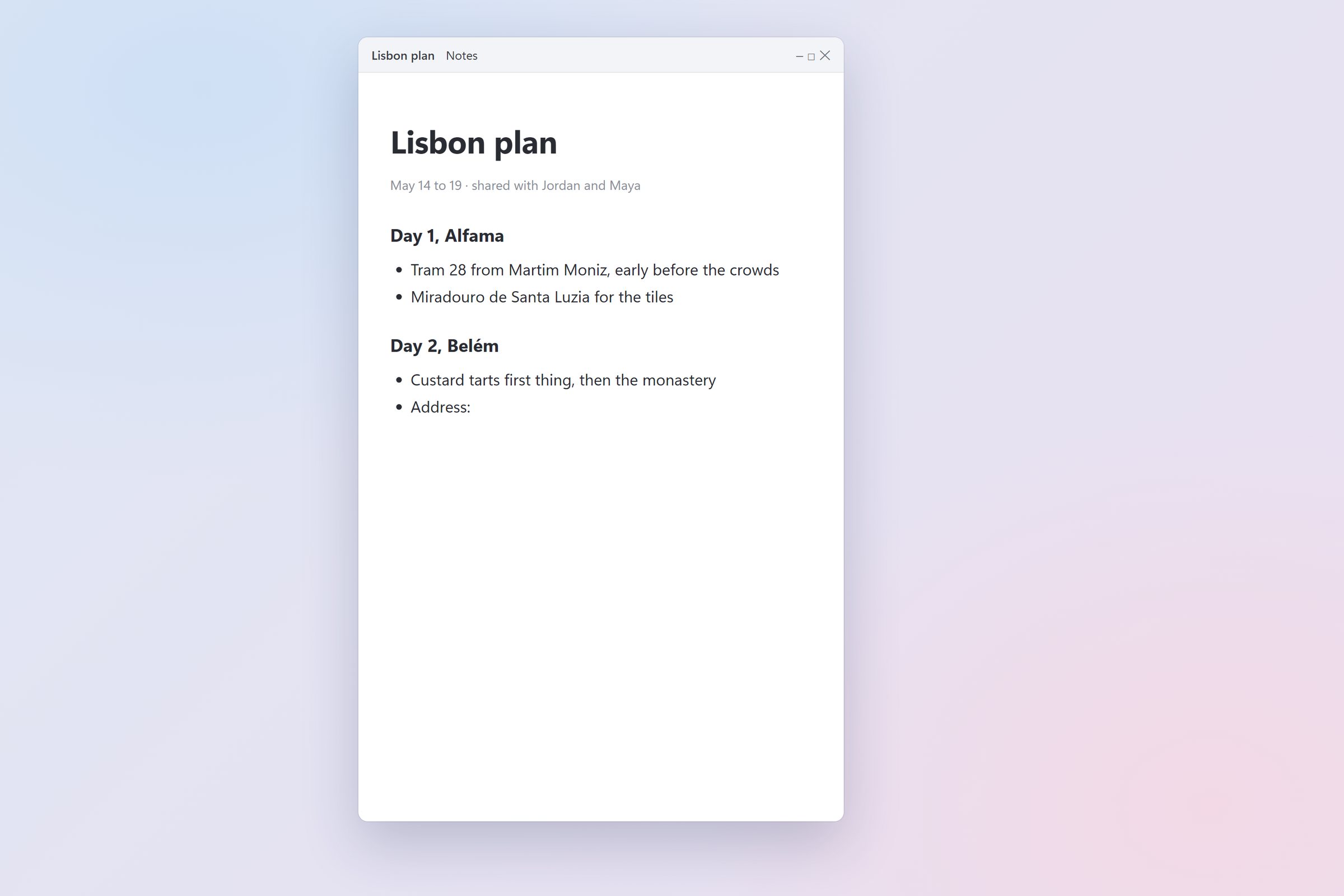
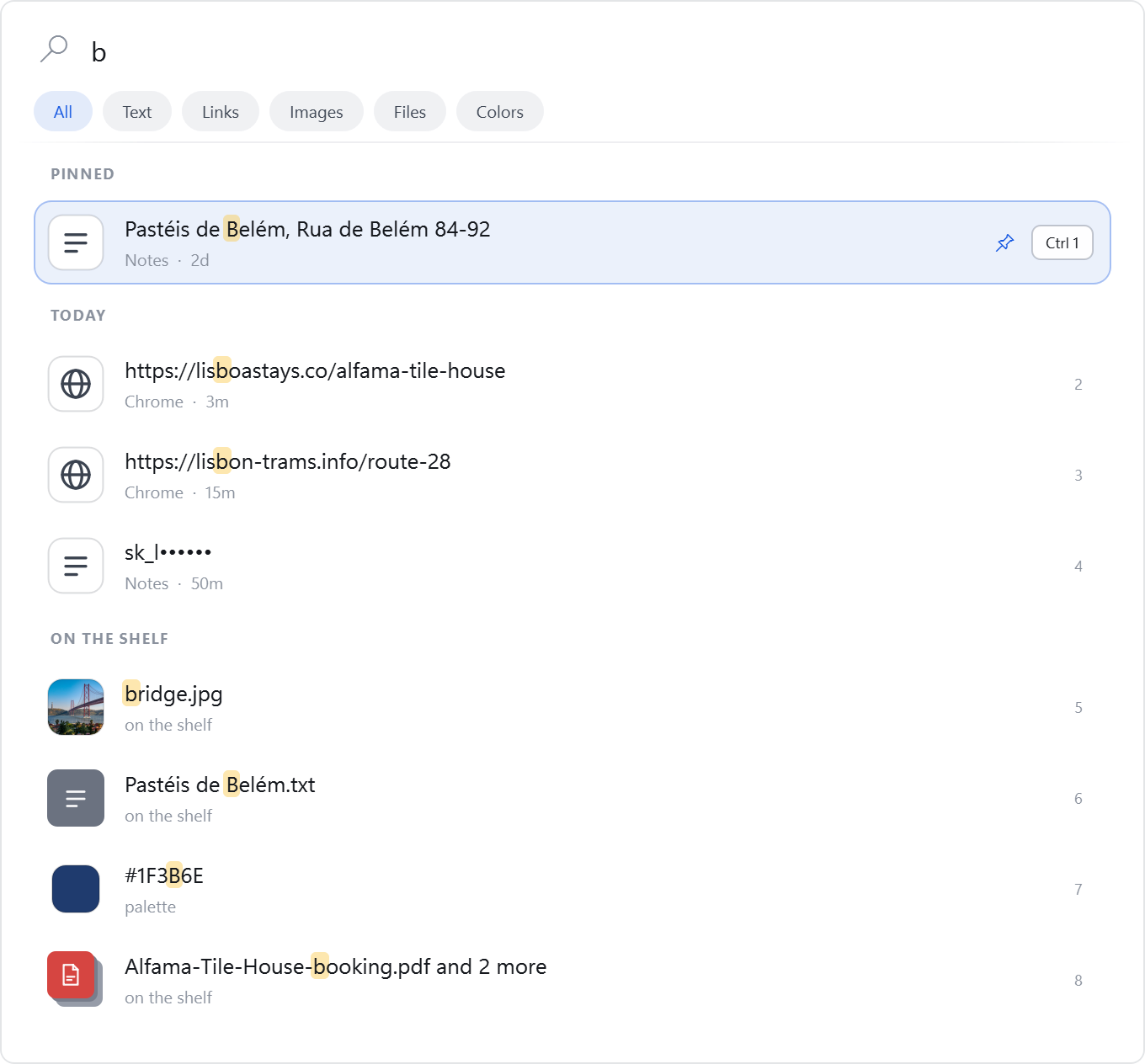
Recall over a trip plan: typing belem finds the pinned café address, Enter pastes it into the notes
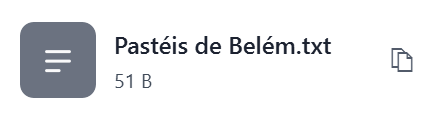
Pastéis de Belém, Rua de Belém 84-92

Press Ctrl+Shift+Space to open Recall.Type a few letters. The results narrow as you type.Press Enter. It pastes into the app you were in.

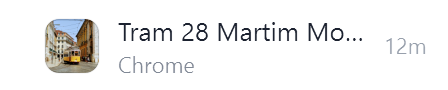
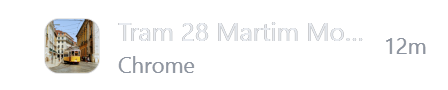
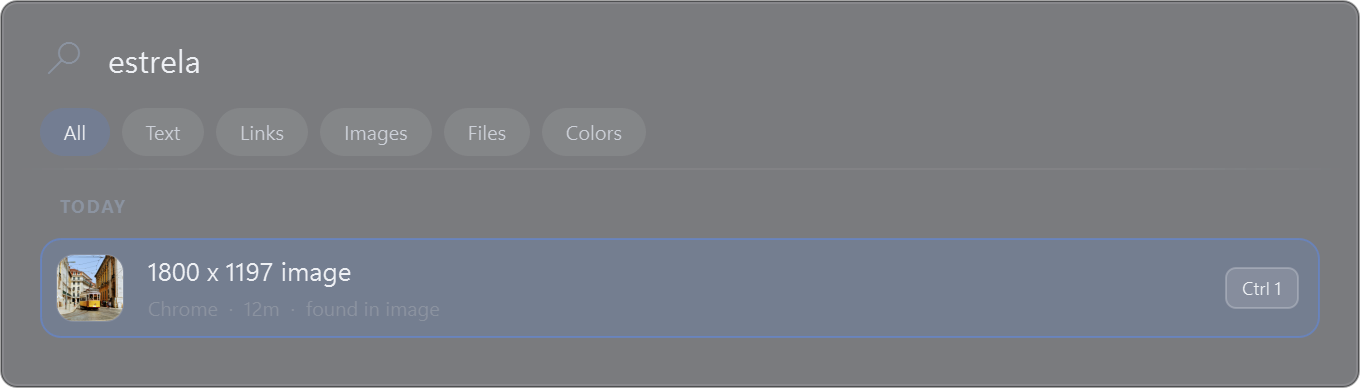
A Lisbon tram with ESTRELA 25 on its sign
Recall finding the photo by searching estrela

Finds words in pictures. Photos and screenshots are read on your PC, so "estrela" finds the tram with it on its sign.

Secrets stay hidden. Keys and passwords show masked until you hover, and password-manager copies are never kept.

Paste in a keystroke. Ctrl+1 to 9 pastes the top clips. Shift+Enter pastes plain text. Pin what you reuse.

Capture

Show, don't type.

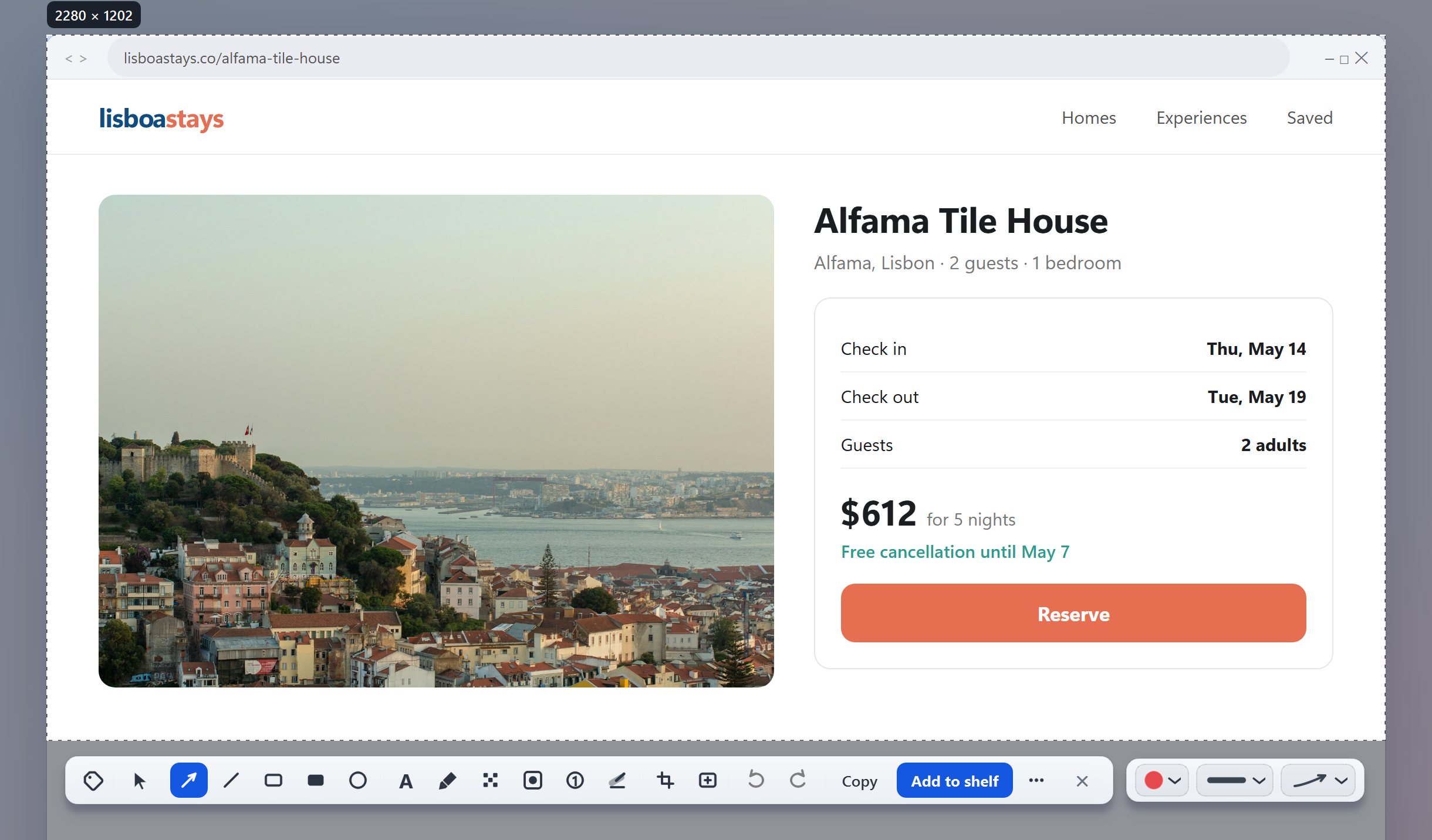
Capture a region or a window, then add arrows, numbered steps, a highlight, a label, blur or a spotlight. Copy it, save it, or keep it on the shelf.

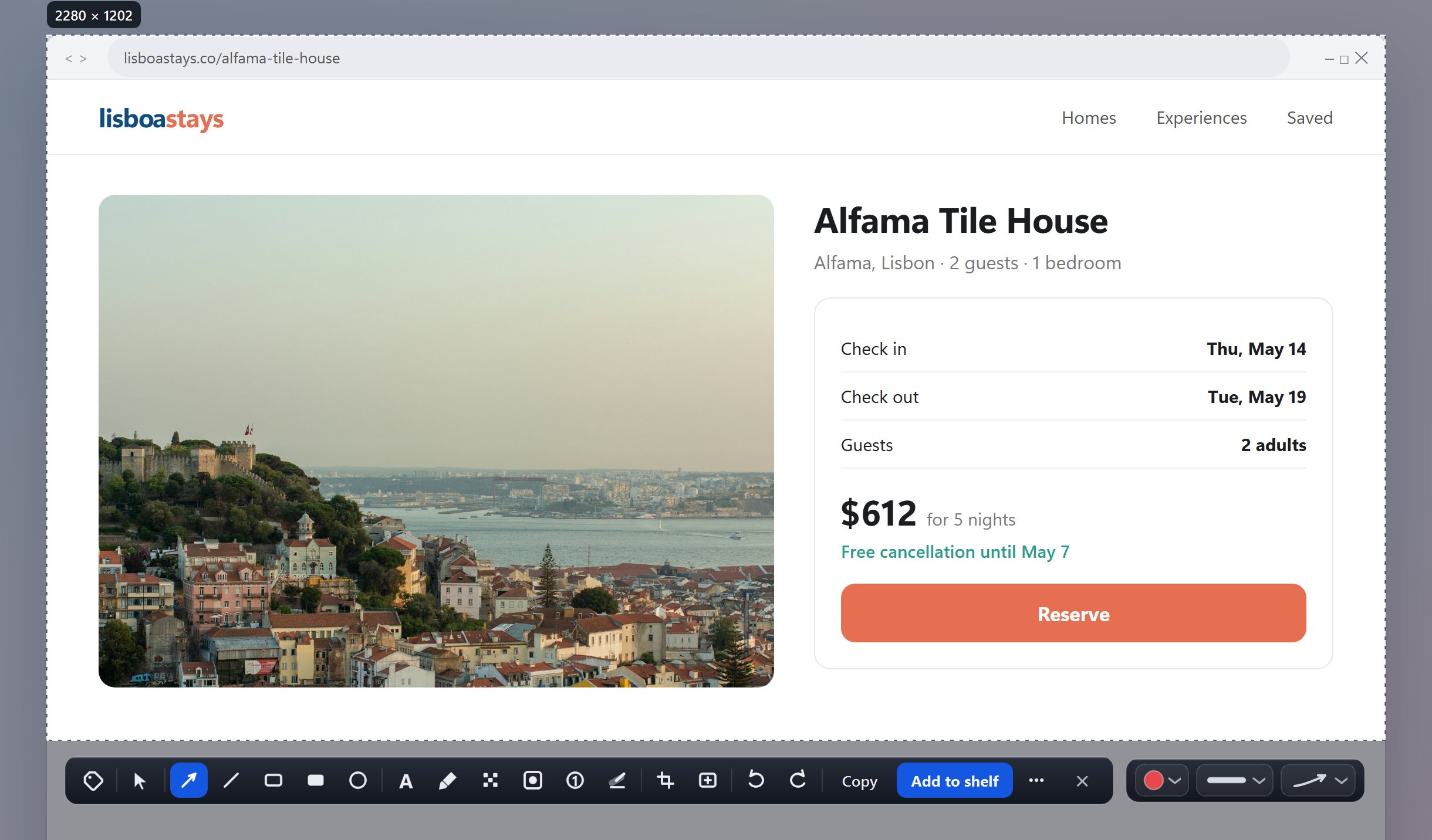
Capture a region, then mark it up.Highlight what matters and point at it.Number the steps. Add a label.

Text grab

Copy the text off anything.

Press Ctrl+Alt+T and drag over any words on screen, even a paused video. They are read on your PC and copied, ready to paste.

Text selected on a paused keynote video and copied
0 × 0

Press Ctrl+Alt+T and drag over any words.They are read on your PC and copied.

Record

Say it once.

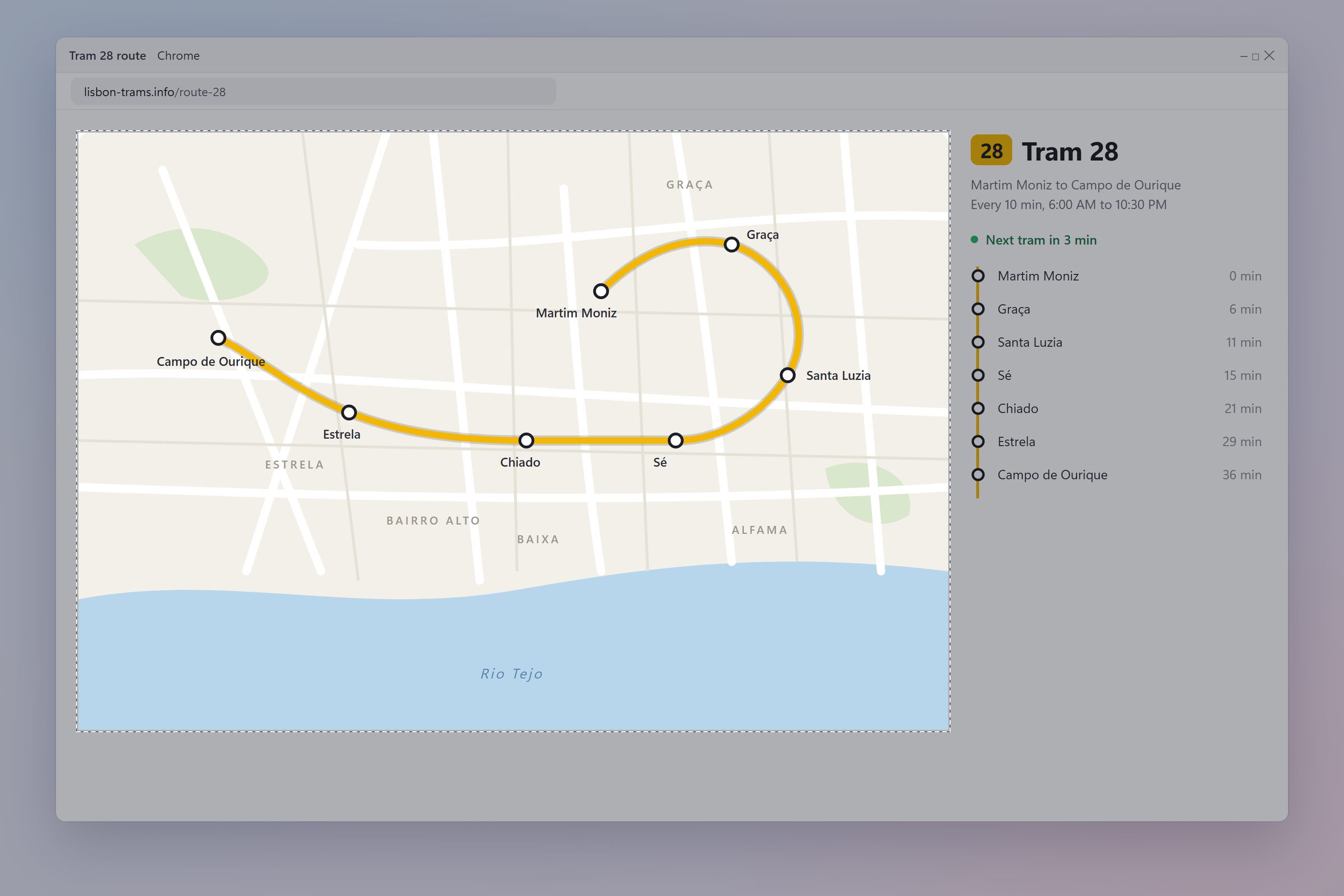
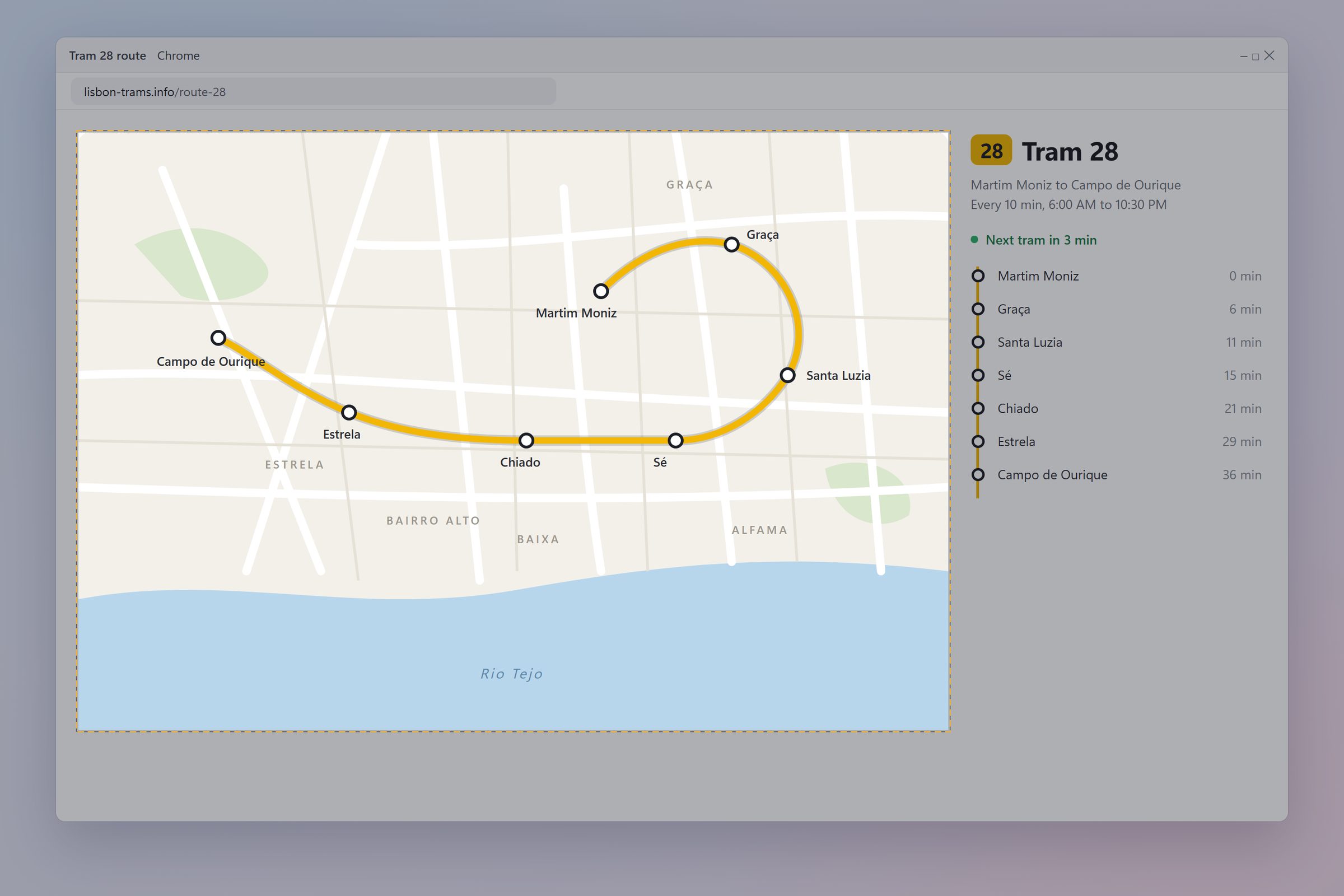
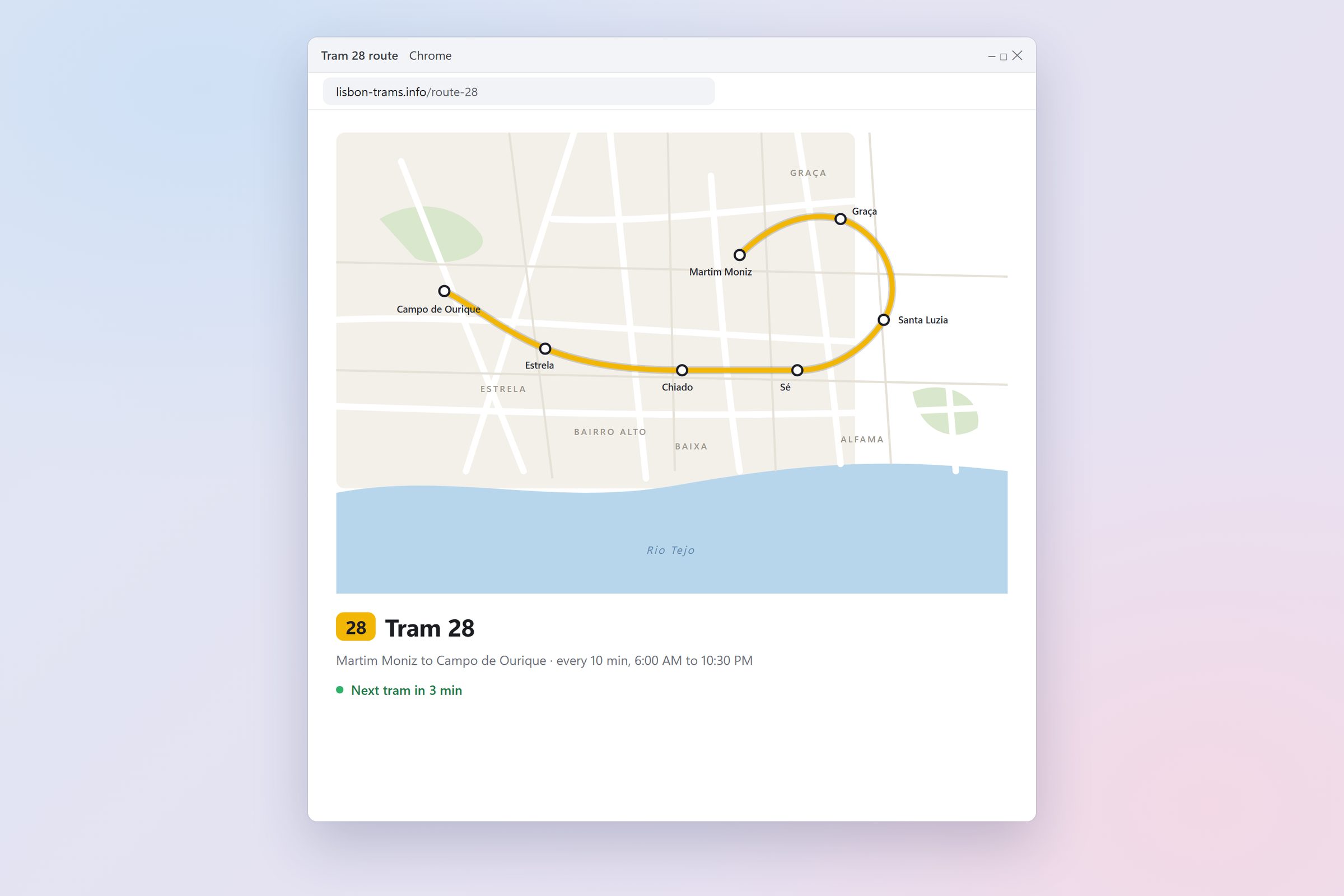
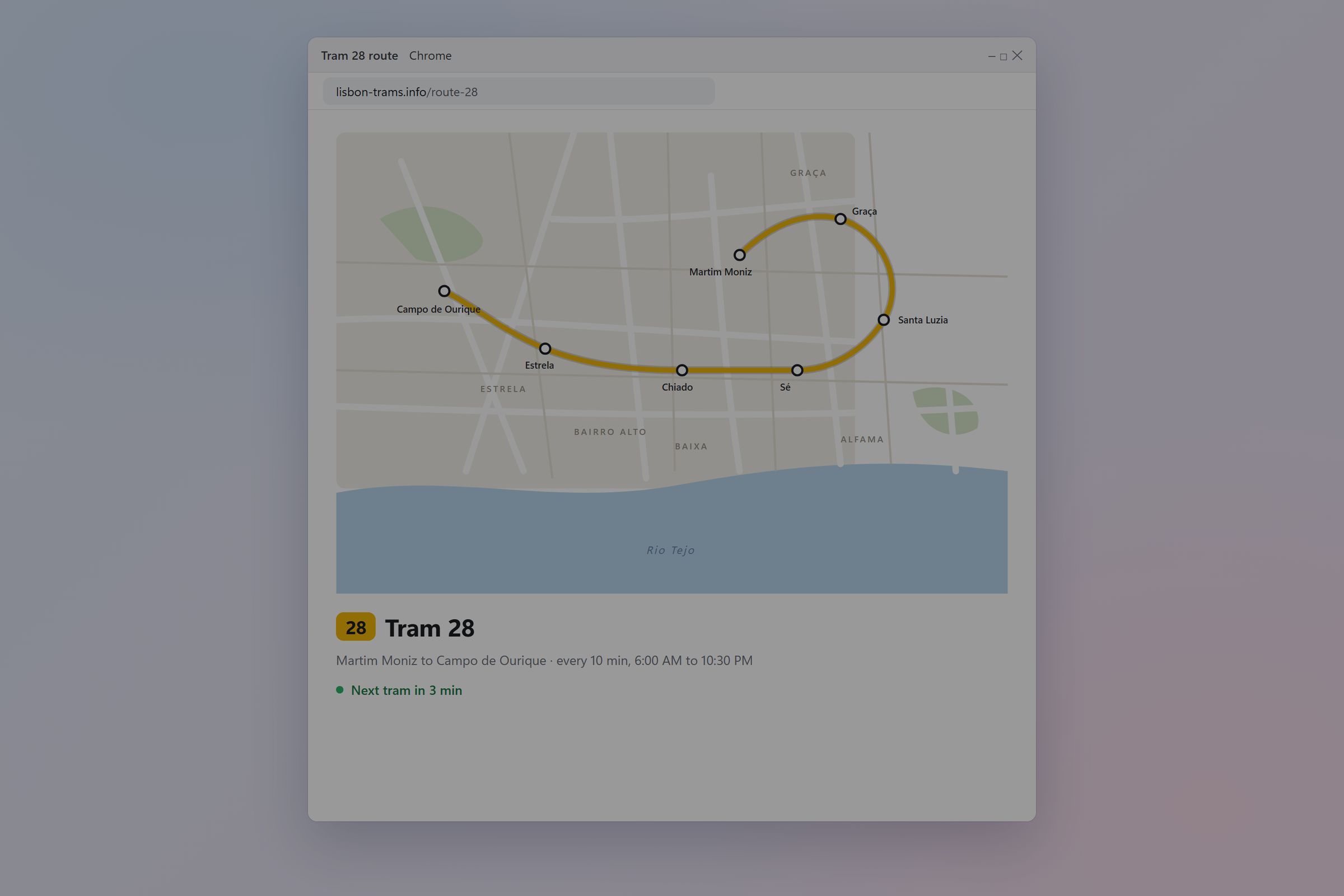
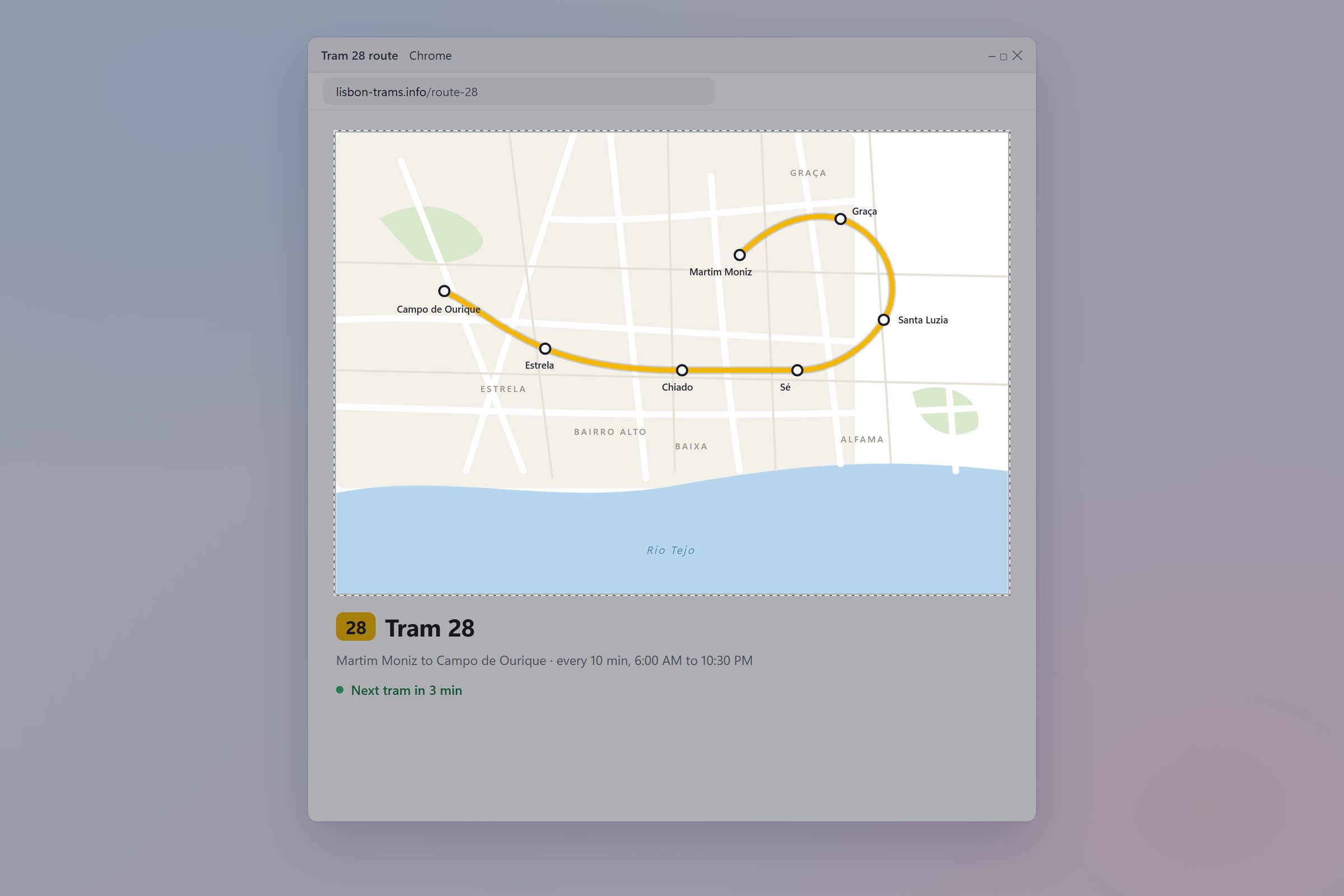
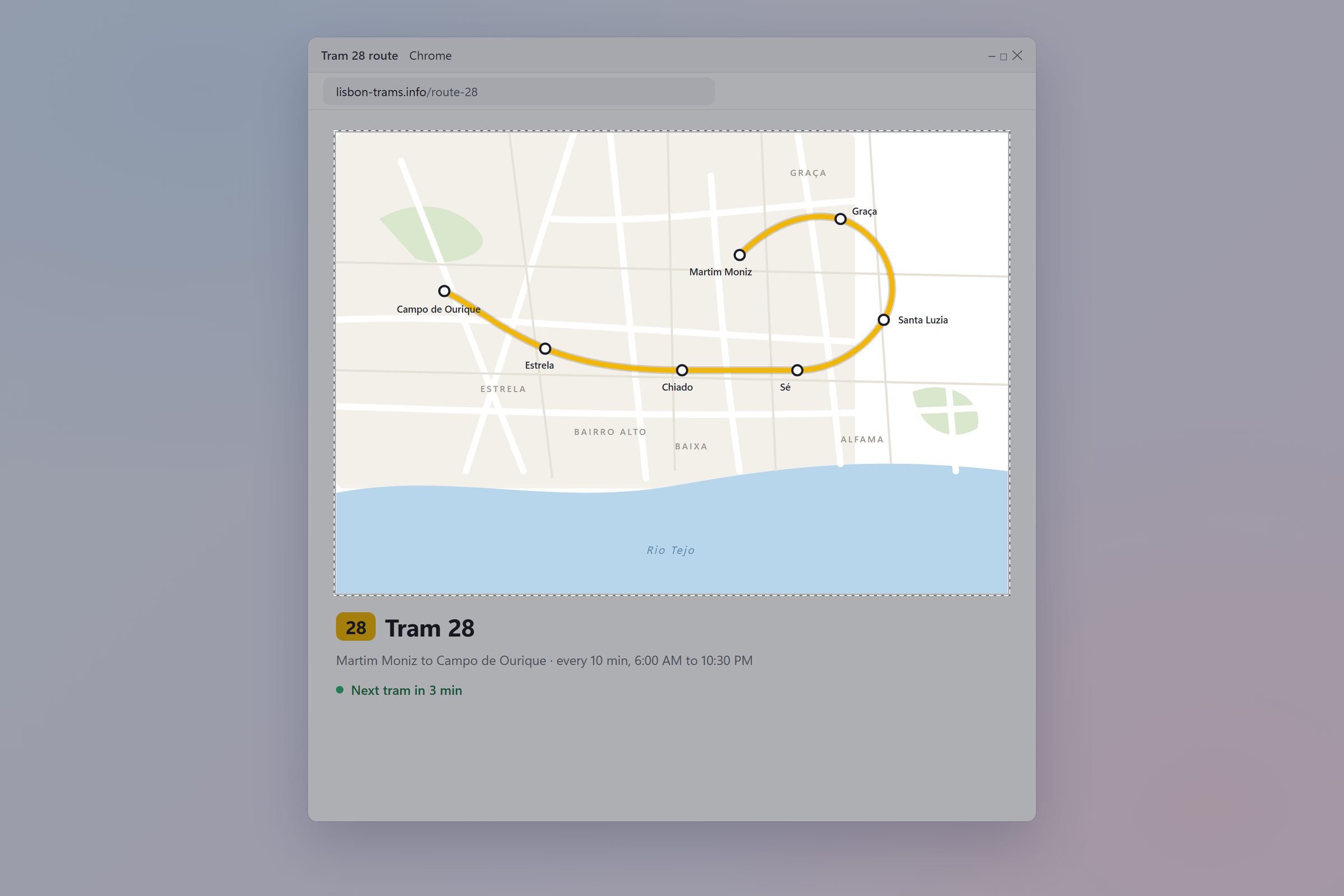
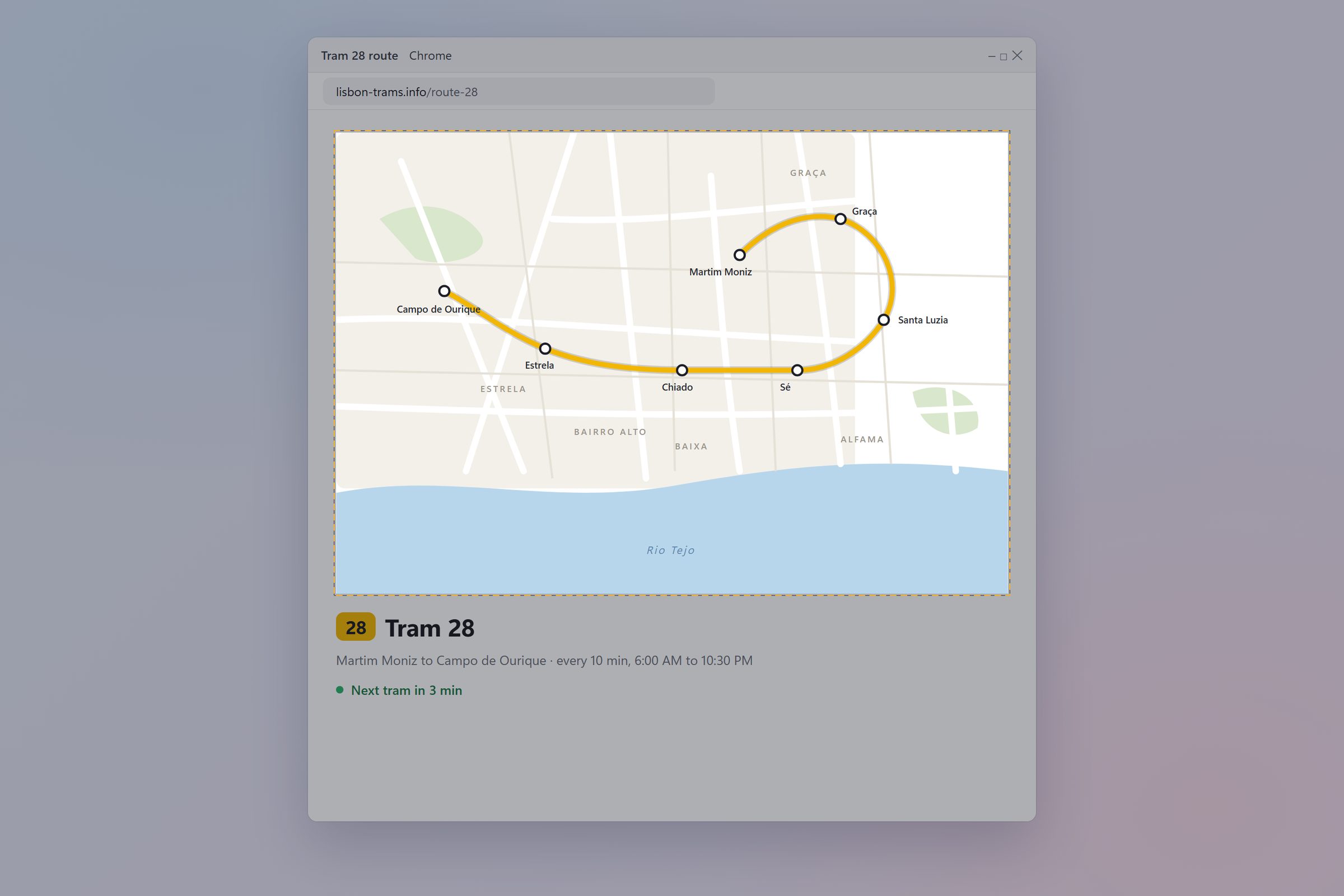
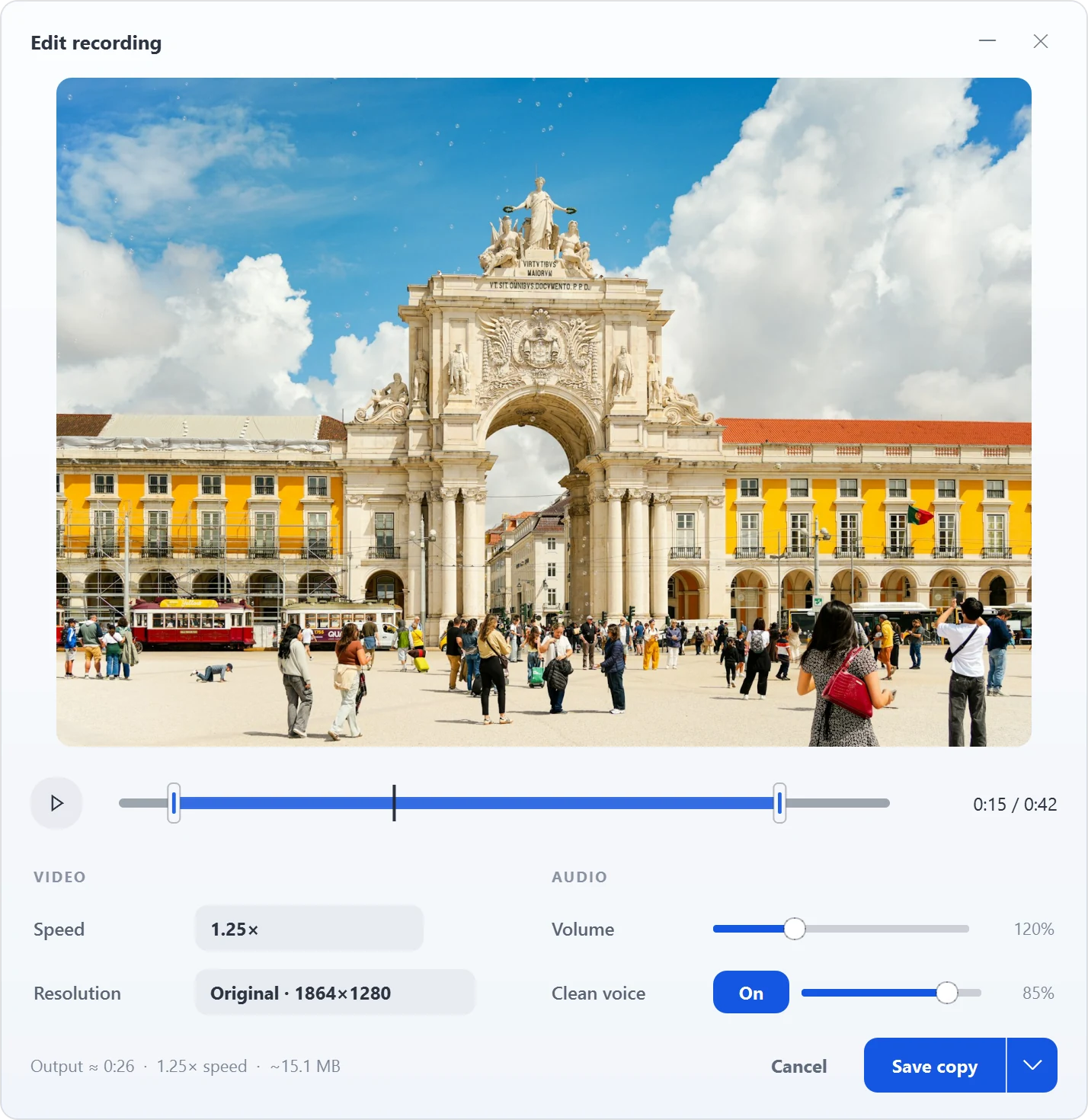
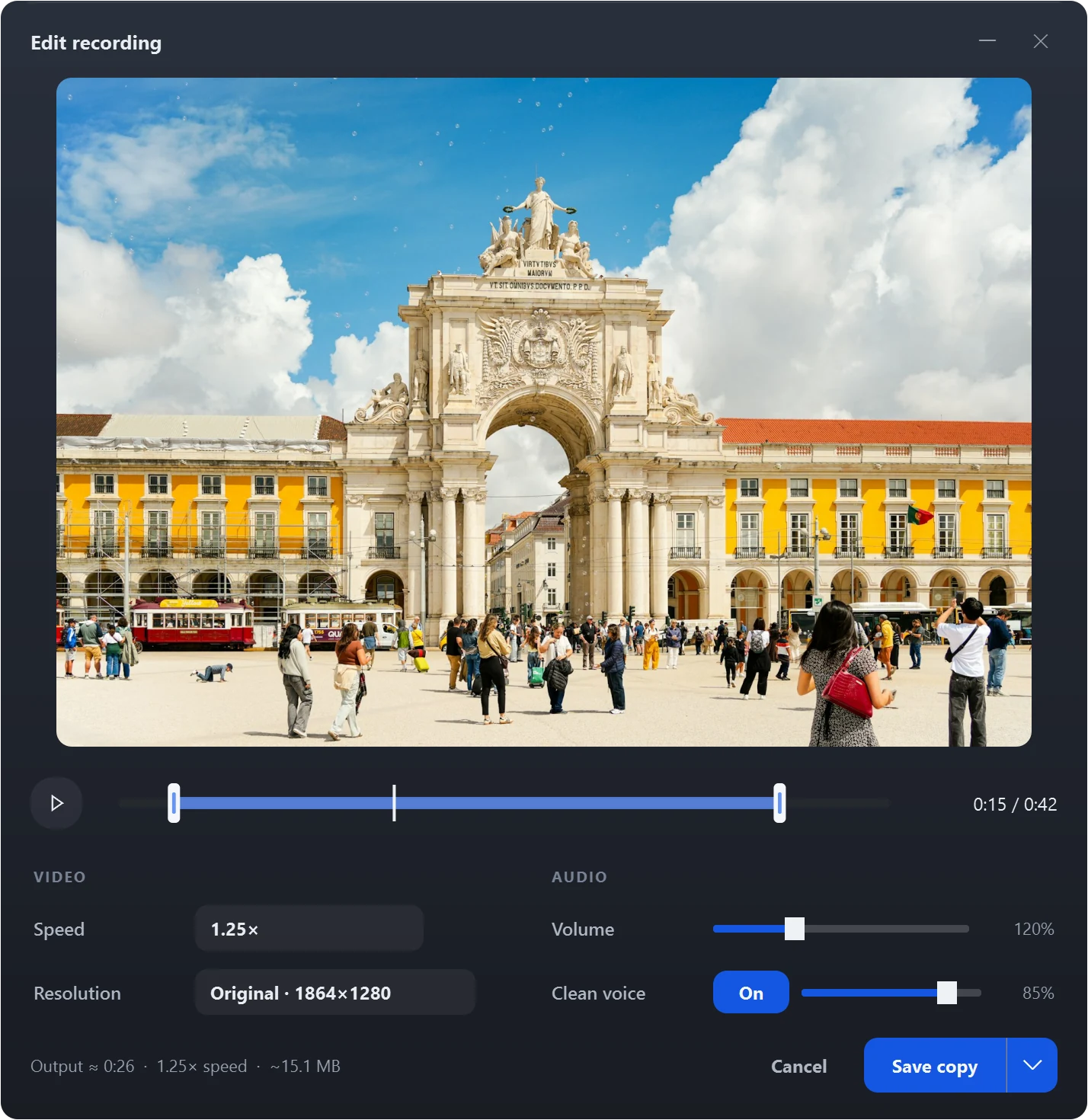
Press Ctrl+Alt+R, drag over what to show, and talk. Circle what matters, pause when you need to. Then trim it, and let Clean voice take out the background noise. MP4 with your voice, or a silent GIF.

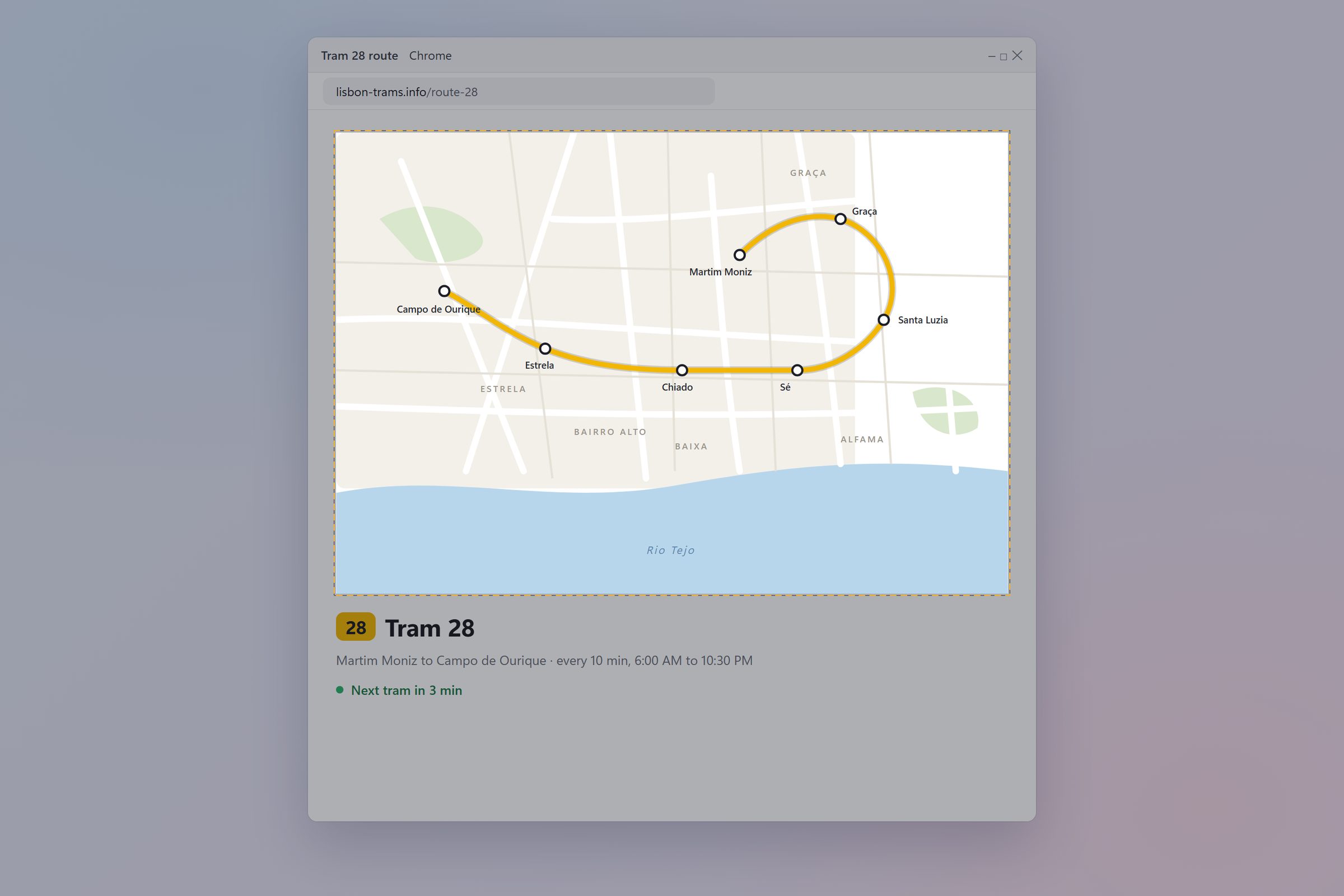
Recording the Tram 28 route map: pick the region, record, circle Santa Luzia, pause
0 × 0
0 × 0
Nestra's recording editor: trim, speed, volume and Clean voice
Clean voiceBackground noiseJust your voice

Hum, fans and keyboard clatter fade out. Your voice stays.

Press Ctrl+Alt+R and pick what to show.Talk, and circle what matters.Pause when you need a breath.Stop, then trim it in the editor.Clean voice takes out the background noise.

Colour picker

Every colour, kept.

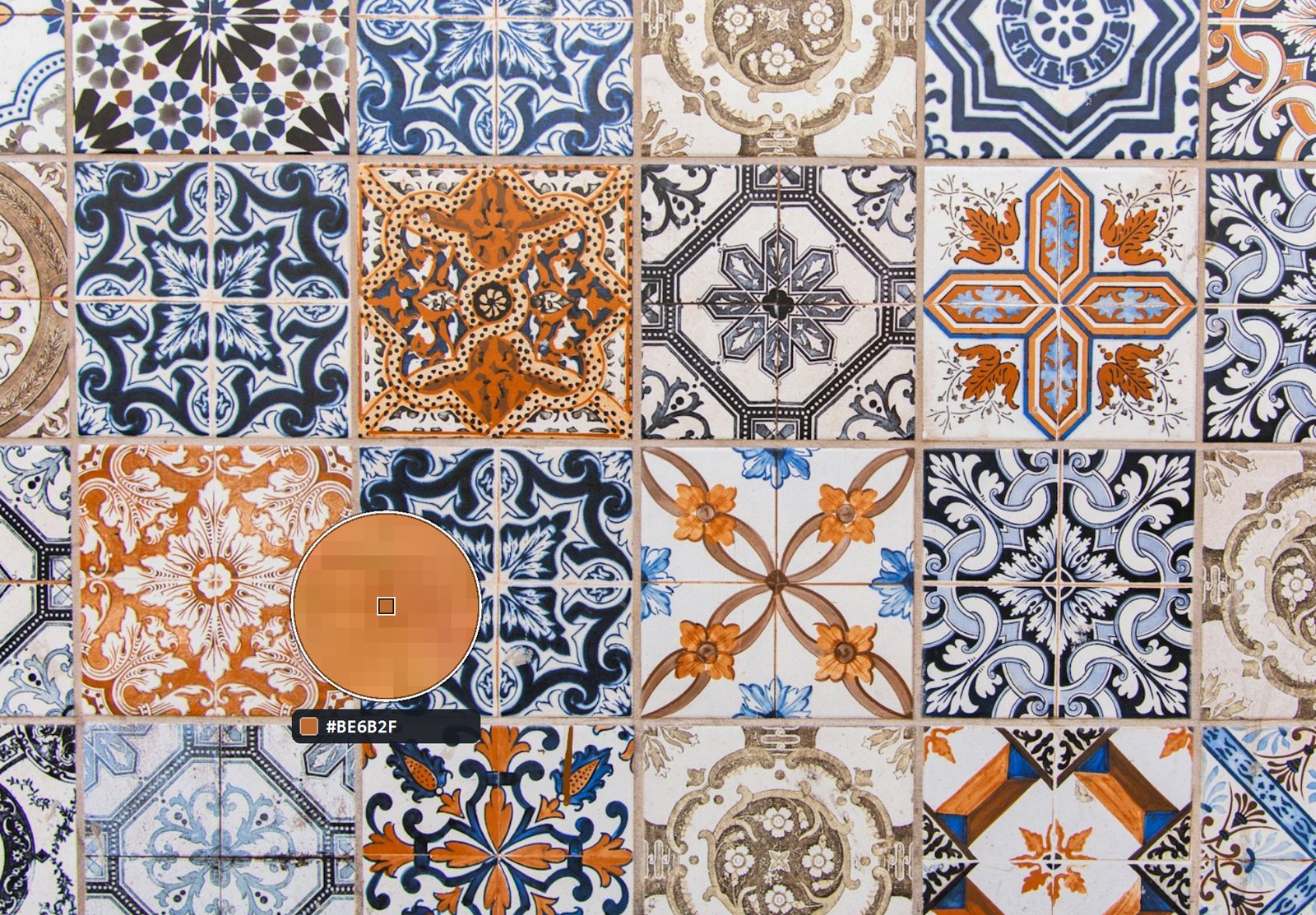
Pick a colour from anything on screen. The hex code is copied for you, and your picks gather on the shelf as a palette that keeps mixing.

The colour picker over a wall of Lisbon tiles, reading #BE6B2F

At home on Windows 11.

Real glass.

Windows 11 acrylic, in light and dark, with your own accent colour.

Your shortcuts.

Change the main shortcuts, and see clearly when another app already uses one.

Always there.

Starts with Windows and waits at the edge. Summon it with a drag, a shake, the tray or a shortcut.

Your stuff
stays yours.

Your clipboard, shelf and captures stay on your PC. No accounts, no telemetry, no ads. Pause history with one switch, leave out the apps you choose, and decide how much Nestra keeps.

Nestra's Clipboard settings: pause, history length and excluded apps

Questions? Answers.

How much does Nestra cost?

$39.99, once. No subscription. Updates come free through the Microsoft Store.

Can I try it first?

Yes. Every feature is free for 15 days. Buy it from the Store whenever you're ready to keep it.

Do I need an account?

No. There's nothing to sign up for. Install it and it's ready.

Where is my data kept?

On your PC only. Nestra never sends your clipboard, files, captures or recordings anywhere. Read the privacy policy.

Which Windows do I need?

Windows 10 version 2004 or later, or Windows 11. It looks its best on Windows 11.

How do I get help?

Email support@thenestra.app. You can attach a diagnostics file from Settings › About Nestra, and it never includes your clipboard or file names.

Keep it close.

Get it from Microsoft Free for 15 days. Then $39.99, once.